

Flux Tasks API Integration and Usage
The main function of the Flux Tasks API is to query the execution status of a task by entering the platform task ID returned by the Flux Images Generation API or Flux Videos API.
This document will provide a detailed introduction to the integration instructions for the Flux Tasks API, helping you easily integrate and fully utilize the powerful capabilities of this API. Through the Flux Tasks API, you can easily query the task execution status of the Flux Images Generation API.
For a complete example of video submission and polling, see the Flux Videos API Integration Guide. Querying existing tasks does not incur additional generation fees.
¶ Application Process
To use the Flux Images Generation API, first go to the 胖狐中转 Console to obtain your API Token and keep it for later use.

If you have not yet logged in or registered, you will be automatically redirected to the login page to register and log in, and you will automatically return to the current page after completion.
One API Token can call all platform services; there is no need to apply separately for each service. Your first application will include free credits for a free trial; when credits are insufficient, you can recharge your general balance in the Console.
📘 Complete documentation: Flux Images Generation API →
¶ Request Example
The Flux Tasks API can be used to query the results of the Flux Images Generation API. For information on how to use the Flux Images Generation API, please refer to the documentation Flux Images Generation API .
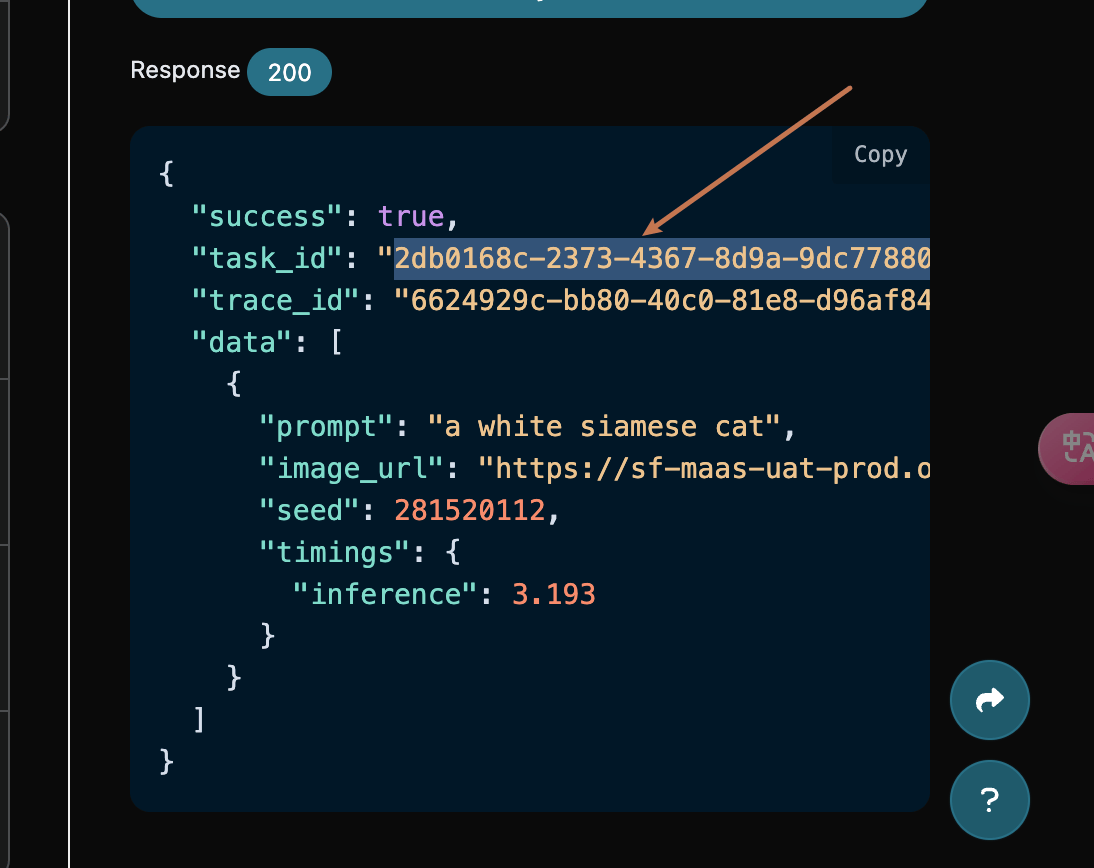
We use a task ID returned by the Flux Images Generation API service as an example to demonstrate how to use this API. Assume we have a task ID: 2db0168c-2373-4367-8d9a-9dc778802e8a, next we demonstrate how to by passing in a task ID.
¶ Task Example Image
¶ Set Request Headers and Request Body
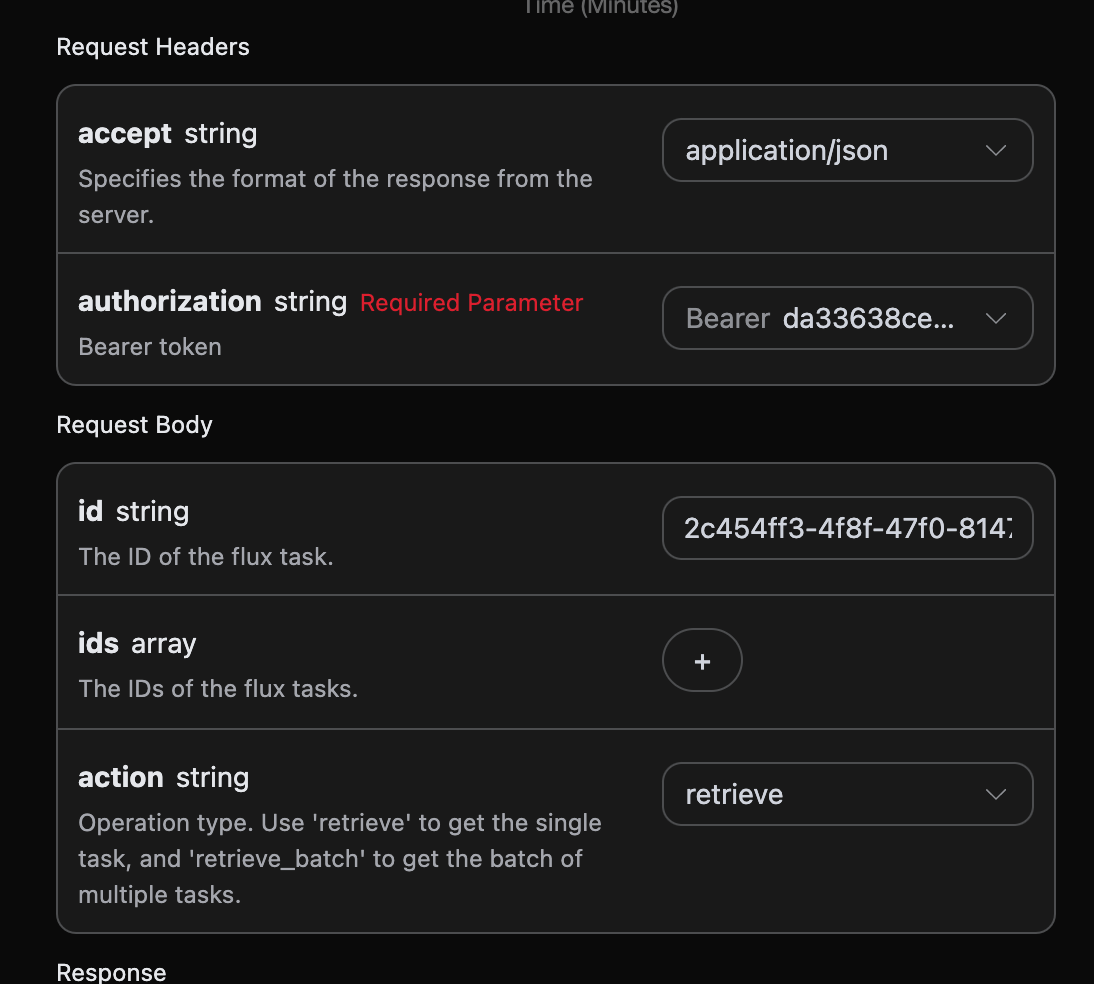
Request Headers include:
accept: Specifies that the response result is received in JSON format; enterapplication/jsonhere.authorization: The key for calling the API, which can be directly selected from the dropdown after application.
Request Body includes:
id: The uploaded task ID.action: The operation method for the task.
Configure as shown in the image below:
¶ Code Example
You can see that code in various languages has already been automatically generated on the right side of the page, as shown in the image:
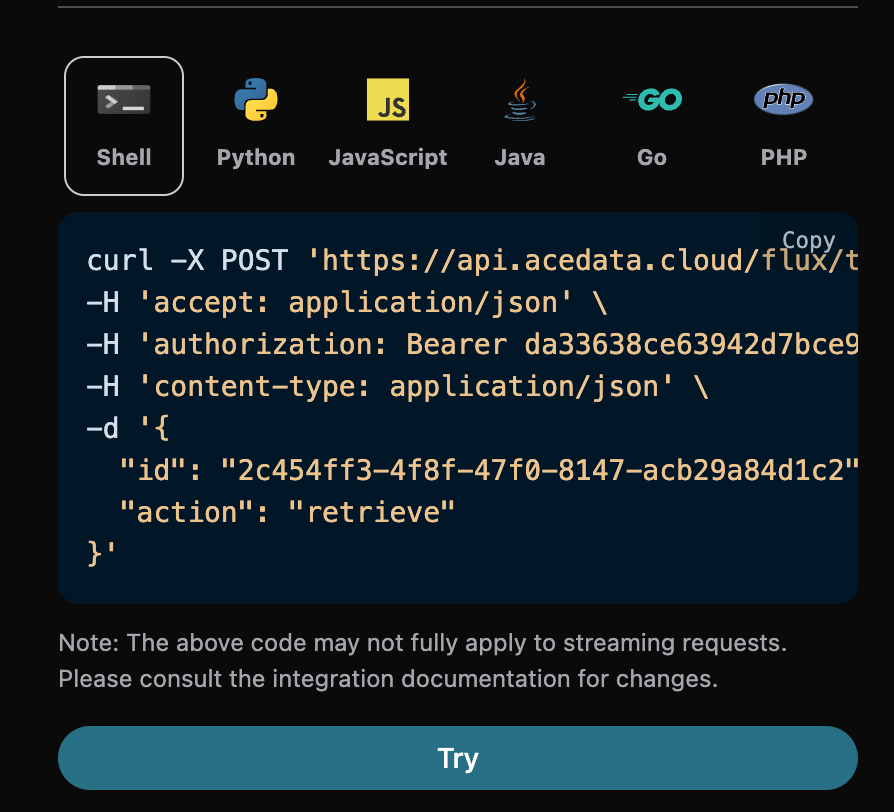
Some code examples are as follows:
¶ CURL
curl -X POST 'https://api.ace.324567.xyz/flux/tasks' \
-H 'accept: application/json' \
-H 'authorization: Bearer {token}' \
-H 'content-type: application/json' \
-d '{
  "id": "2c454ff3-4f8f-47f0-8147-acb29a84d1c2",
  "action": "retrieve"
}'
¶ Python
import requests

url = "https://api.ace.324567.xyz/flux/tasks"

headers = {
    "accept": "application/json",
    "authorization": "Bearer {token}",
    "content-type": "application/json"
}

payload = {
    "id": "2c454ff3-4f8f-47f0-8147-acb29a84d1c2",
    "action": "retrieve"
}

response = requests.post(url, json=payload, headers=headers)
print(response.text)
¶ Response Example
After the request succeeds, the API will return detailed information about the image task here. For example:
{
  "_id": "677de81d550a4144a5f4cf62",
  "id": "2db0168c-2373-4367-8d9a-9dc778802e8a",
  "api_id": "deefc5d7-7f22-43e9-929e-f2b6afee60b7",
  "application_id": "001c2f84-2a4a-4c4d-ba3f-8a89f43b5be2",
  "created_at": 1736304669.779,
  "started_at": 1736304669.839,
  "finished_at": 1736304679.439,
  "elapsed": 9.6,
  "credential_id": "b00bddd3-140f-4343-a9a2-affb312b60de",
  "request": {
    "action": "generate",
    "size": "1024x1024",
    "prompt": "a white siamese cat"
  },
  "trace_id": "6624929c-bb80-40c0-81e8-d96af8405d19",
  "user_id": "ad7afe47-cea9-4cda-980f-2ad8810e51cf",
  "response": {
    "success": true,
    "task_id": "2db0168c-2373-4367-8d9a-9dc778802e8a",
    "trace_id": "6624929c-bb80-40c0-81e8-d96af8405d19",
    "data": [
      {
        "prompt": "a white siamese cat",
        "image_url": "https://cdn.acedata.cloud/e724d7f13d.png",
        "seed": 281520112,
        "timings": {
          "inference": 3.193
        }
      }
    ]
  }
}
The returned result has multiple fields. The request field is the request body when initiating the task, while the response field is the response body returned after the task is completed. The fields are described as follows.
id, the ID of the generated image task, used to uniquely identify this image generation task.request, the request information in the image task query.response, the response information in the image task query.created_at, task creation time, Unix timestamp (seconds, floating point).started_at, task execution start time, Unix timestamp (seconds, floating point).finished_at, task completion time, Unix timestamp (seconds, floating point). This field is not returned when the task is not completed.elapsed, task execution duration, in seconds (floating point, retained to 3 decimal places). This field is not returned when the task is not completed.
¶ Batch Query Operation
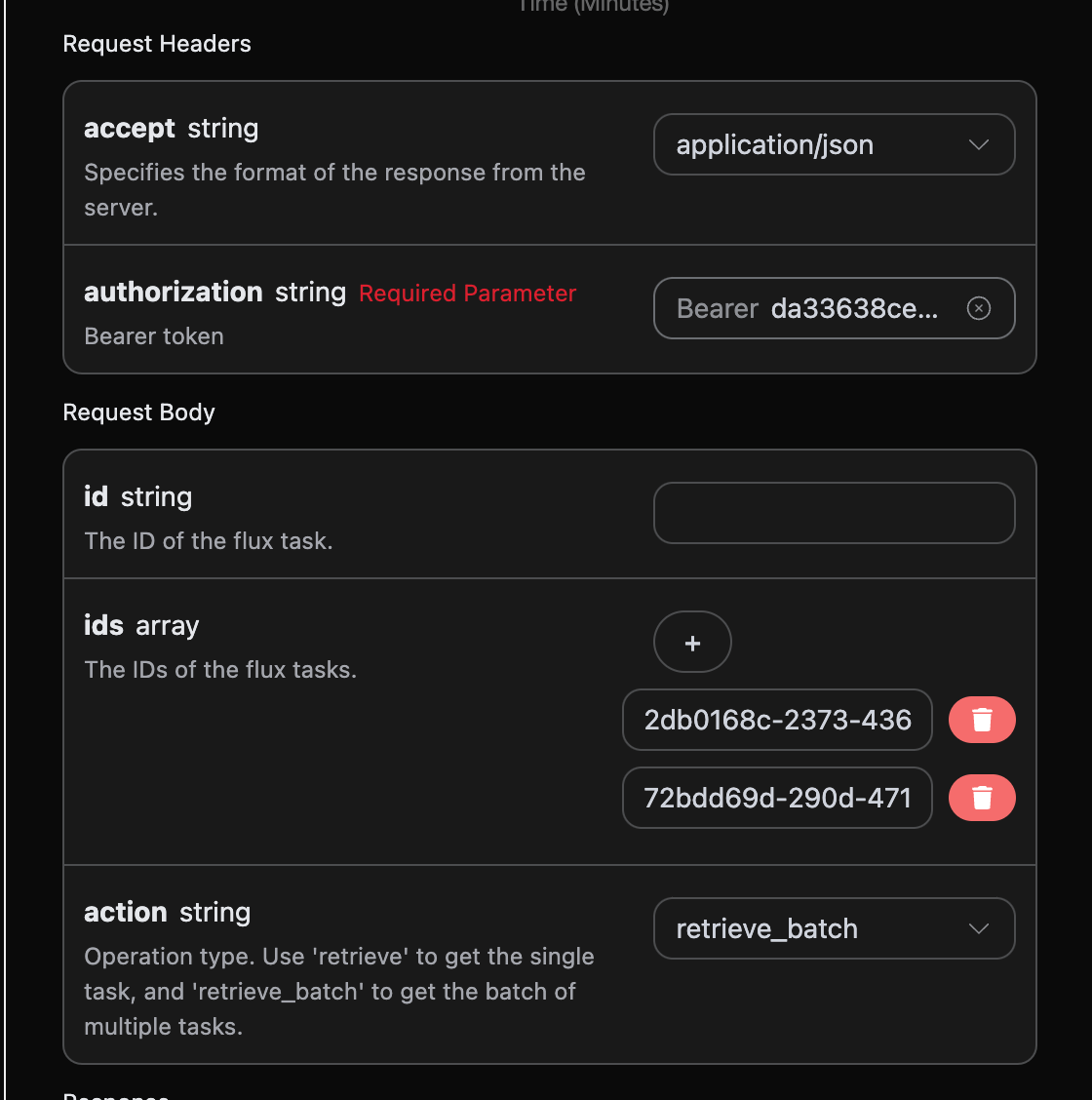
This is for querying image task details for multiple task IDs. The difference from above is that the action needs to be selected as retrieve_batch
Request Body includes:
ids: The array of uploaded task IDs.action: The operation method for the task.
Configure as shown in the image below:
¶ Code Example
You can see that code in various languages has already been automatically generated on the right side of the page, as shown in the image:
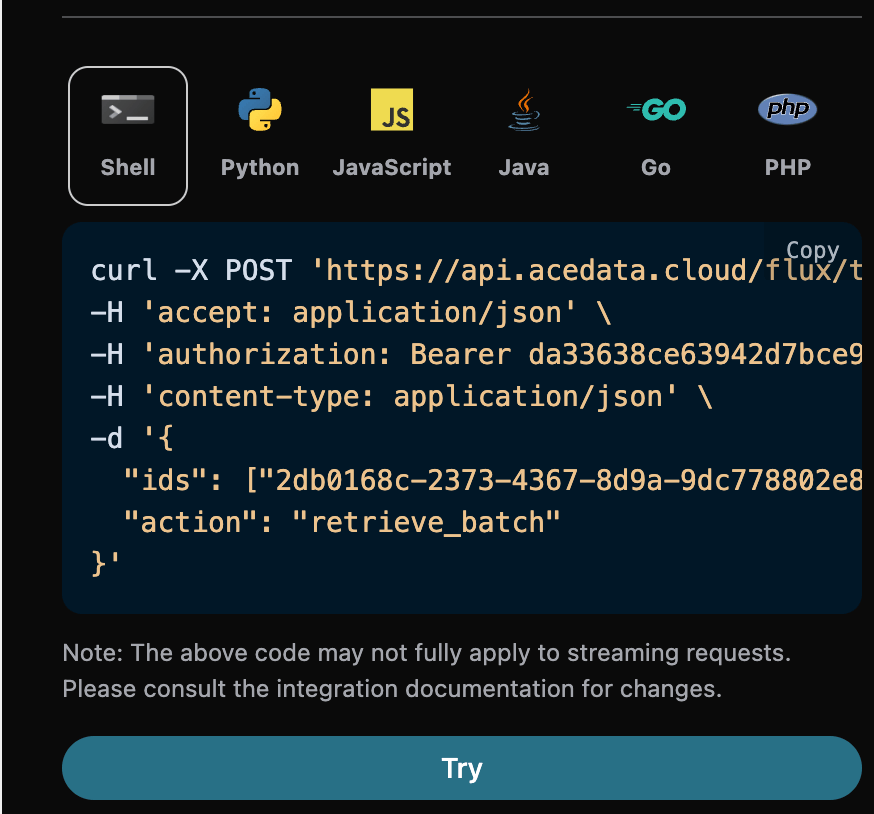
Some code examples are as follows:
¶ Response Example
After the request succeeds, the API will return specific detailed information about all batch image tasks this time. For example:
{
  "items": [
    {
      "_id": "677de81d550a4144a5f4cf62",
      "id": "2db0168c-2373-4367-8d9a-9dc778802e8a",
      "api_id": "deefc5d7-7f22-43e9-929e-f2b6afee60b7",
      "application_id": "001c2f84-2a4a-4c4d-ba3f-8a89f43b5be2",
      "created_at": 1736304669.779,
      "started_at": 1736304669.839,
      "finished_at": 1736304679.439,
      "elapsed": 9.6,
      "credential_id": "b00bddd3-140f-4343-a9a2-affb312b60de",
      "request": {
        "action": "generate",
        "size": "1024x1024",
        "prompt": "a white siamese cat"
      },
      "trace_id": "6624929c-bb80-40c0-81e8-d96af8405d19",
      "user_id": "ad7afe47-cea9-4cda-980f-2ad8810e51cf",
      "response": {
        "success": true,
        "task_id": "2db0168c-2373-4367-8d9a-9dc778802e8a",
        "trace_id": "6624929c-bb80-40c0-81e8-d96af8405d19",
        "data": [
          {
            "prompt": "a white siamese cat",
            "image_url": "https://cdn.acedata.cloud/e724d7f13d.png",
            "seed": 281520112,
            "timings": {
              "inference": 3.193
            }
          }
        ]
      }
    },
    {
      "_id": "677de950550a4144a5f52963",
      "id": "72bdd69d-290d-4710-a6d4-60c78968865a",
      "api_id": "deefc5d7-7f22-43e9-929e-f2b6afee60b7",
      "application_id": "001c2f84-2a4a-4c4d-ba3f-8a89f43b5be2",
      "created_at": 1736304976.278,
      "started_at": 1736304976.338,
      "finished_at": 1736304985.938,
      "elapsed": 9.6,
      "credential_id": "b00bddd3-140f-4343-a9a2-affb312b60de",
      "request": {
        "action": "generate",
        "size": "1024x1024",
        "prompt": "a white siamese cat"
      },
      "trace_id": "1dca4b49-d31d-42e6-83d9-7f0c56f62d31",
      "user_id": "ad7afe47-cea9-4cda-980f-2ad8810e51cf",
      "response": {
        "success": true,
        "task_id": "72bdd69d-290d-4710-a6d4-60c78968865a",
        "trace_id": "1dca4b49-d31d-42e6-83d9-7f0c56f62d31",
        "data": [
          {
            "prompt": "a white siamese cat",
            "image_url": "https://cdn.acedata.cloud/e724d7f13d.png",
            "seed": 1437672535,
            "timings": {
              "inference": 3.175
            }
          }
        ]
      }
    }
  ],
  "count": 2
}
The returned result contains multiple fields. Among them, items contains the detailed information of batch image tasks. The specific information of each image task is the same as the fields above. The field information is as follows.
items, all detailed information of batch image tasks. It is an array, and each element in the array has the same format as the returned result for querying a single task above.count, the number of image tasks queried in batch here.
¶ CURL
curl -X POST 'https://api.ace.324567.xyz/flux/tasks' \
-H 'accept: application/json' \
-H 'authorization: Bearer {token}' \
-H 'content-type: application/json' \
-d '{
  "ids": ["2db0168c-2373-4367-8d9a-9dc778802e8a","72bdd69d-290d-4710-a6d4-60c78968865a"],
  "action": "retrieve_batch"
}'
¶ Python
import requests

url = "https://api.ace.324567.xyz/flux/tasks"

headers = {
    "accept": "application/json",
    "authorization": "Bearer {token}",
    "content-type": "application/json"
}

payload = {
    "ids": ["2db0168c-2373-4367-8d9a-9dc778802e8a","72bdd69d-290d-4710-a6d4-60c78968865a"],
    "action": "retrieve_batch"
}

response = requests.post(url, json=payload, headers=headers)
print(response.text)
¶ Error Handling
When calling the API, if an error is encountered, the API will return the corresponding error code and information. For example:
400 token_mismatched: Bad request, possibly due to missing or invalid parameters.400 api_not_implemented: Bad request, possibly due to missing or invalid parameters.401 invalid_token: Unauthorized, invalid or missing authorization token.429 too_many_requests: Too many requests, you have exceeded the rate limit.500 api_error: Internal server error, something went wrong on the server.
¶ Error Response Example
{
  "success": false,
  "error": {
    "code": "api_error",
    "message": "fetch failed"
  },
  "trace_id": "2cf86e86-22a4-46e1-ac2f-032c0f2a4e89"
}
¶ Conclusion
Through this document, you have learned how to use the FLux Tasks API to query all detailed information of single or batch image tasks. We hope this document can help you better integrate and use this API. If you have any questions, please feel free to contact our technical support team.